Environment
Environment Dependencies
Dependencies and Use Cases
- Fine-tuning (based on alpaca-lora): datasets, deepspeed, faiss-cpu, fire, gradio, numpy, peft, torch, transformers
- Fine-tuning (based on collie): collie-lm, numpy, peft, torch, transformers, datasets, deepspeed, fire
- Fine-tuning (based on lightllm): lightllm
- Fine-tuning (based on vllm): vllm
Basic Dependencies
- fastapi: FastAPI is a modern, fast (high-performance) web framework for building APIs, used in conjunction with Python 3.6+ type hints.
- loguru: Loguru is a Python logging library aimed at providing flexible logging capabilities through a concise and easy-to-use API.
- pydantic: Pydantic is a data validation and settings management tool that uses Python's type annotations to validate data.
- Requests: Requests is a Python HTTP library for sending HTTP requests. It is simple and easy to use, making it a common choice for making web requests in Python.
- uvicorn: Uvicorn is a lightweight and fast ASGI server used for running web applications in Python 3.6+.
- cloudpickle: Cloudpickle is a Python serialization library capable of serializing Python objects into byte streams for transmission across Python programs and interpreters.
- flake8: Flake8 is a code style checking tool used to detect errors in Python code and ensure compliance with PEP 8 coding standards.
- gradio: Gradio is a library for quickly creating simple web interfaces, allowing users to interact with Python models.
- gradio_client: The Gradio client library allows users to load and use Gradio interfaces from a remote server.
- protobuf: Google's Protocol Buffers Python implementation, used for serializing structured data.
- setuptools: A Python package installation and distribution tool, used for packaging and distributing Python applications and libraries.
Install on Different Operating Systems
Windows
Step 1: Install Git
Download and install from: https://github.com/git-for-windows/git/releases/download/v2.50.1.windows.1/Git-2.50.1-64-bit.exe
Step 2: Install Python
Official website: https://python.p2hp.com/downloads/ Recommended: Python 3.10.9 1. Select the corresponding version to download, choose "Customize installation" during installation to customize the installation path, and check "Add to PATH" below
Note
If already installed, you can choose "uninstall" to remove it and reinstall
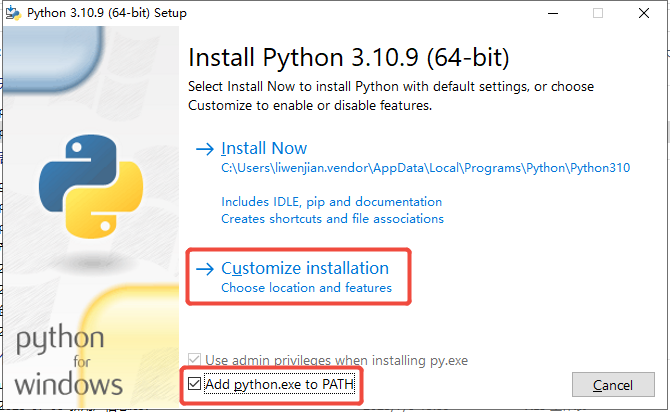
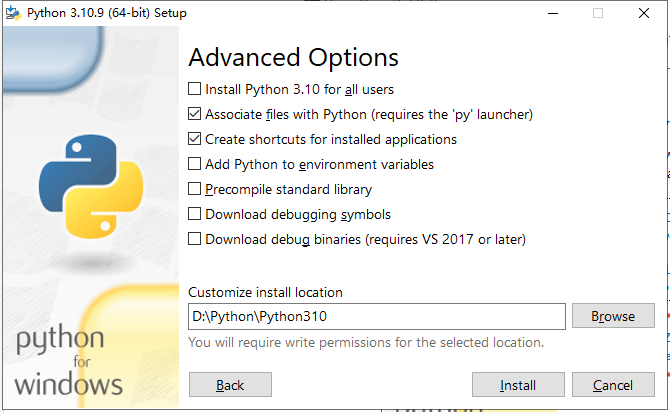
- Customize the installation path, you can set it to D:\Python\Python310
Step 3: Install and Use VS Code
- Download and install VS Code
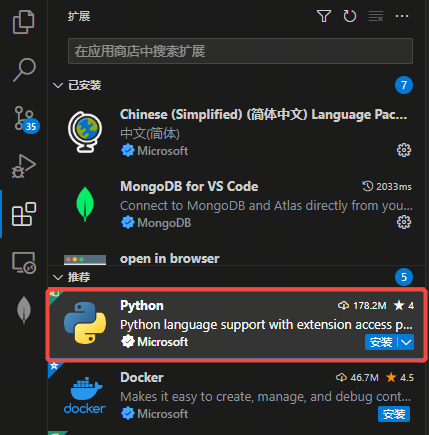
- Install Python extensions
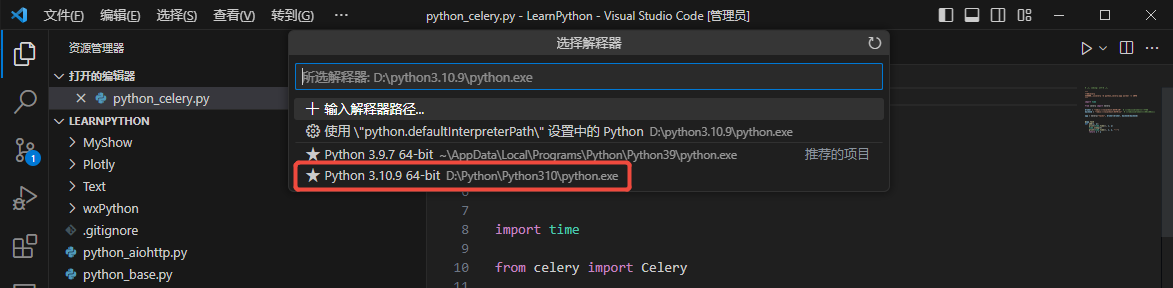
- After opening any Python file in VS Code, you can select the Python interpreter at the bottom
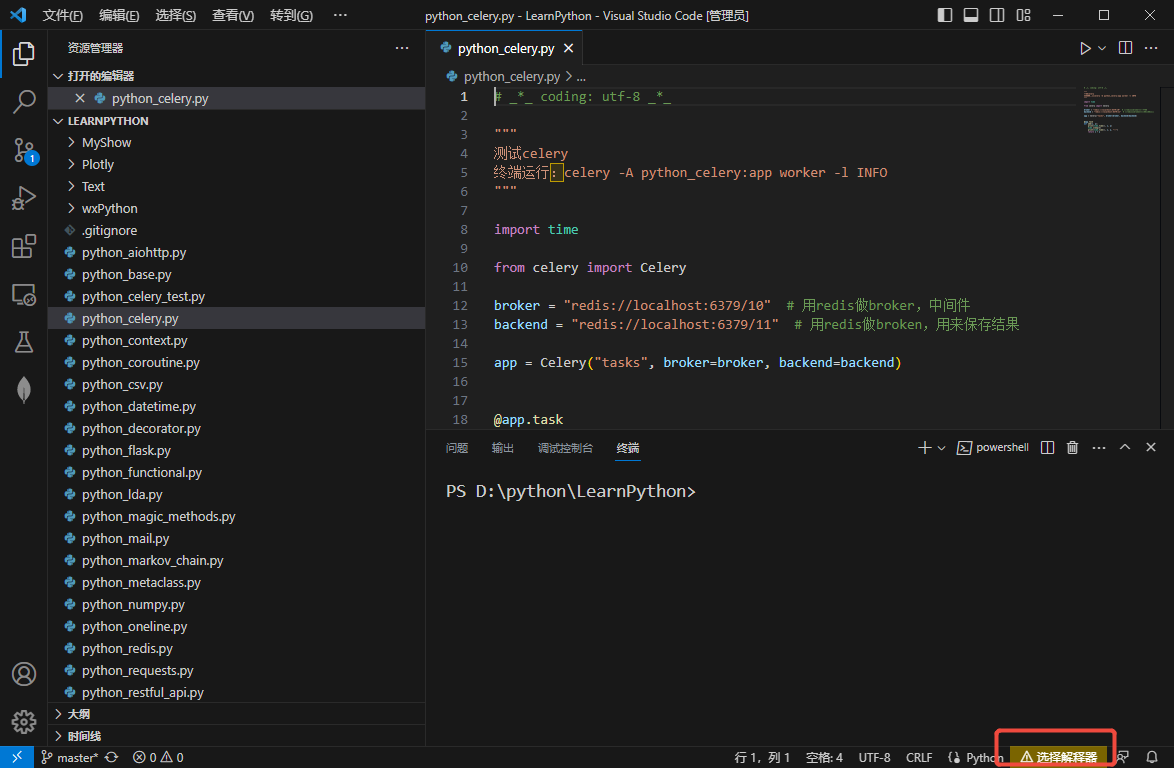
- It will automatically detect all interpreters by default, choose one; or manually input D:\Python\Python310\python.exe twice
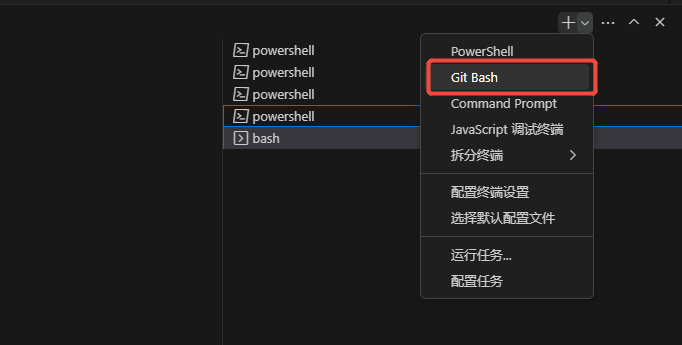
- Choose Git Bash in the terminal to use a Linux-like command line environment
Step 4: Install LazyLLM
-
Install lazyllm through command line in the terminal
-
Set environment variable keys
In PowerShell, set them using the following code:
$env:LAZYLLM_SENSENOVA_API_KEY = "7ACAxxxxxxxxxxxxxxx"
$env:LAZYLLM_SENSENOVA_SECRET_KEY = "2B0F7xxxxxxxxxxxxxxxx"
In Bash, set them using the following code:
export LAZYLLM_SENSENOVA_API_KEY="7ACACxxxxxxxxxxxxxxx"
export LAZYLLM_SENSENOVA_SECRET_KEY="2B0F72xxxxxxxxxxxxxx"
Windows with WSL
Prerequisites
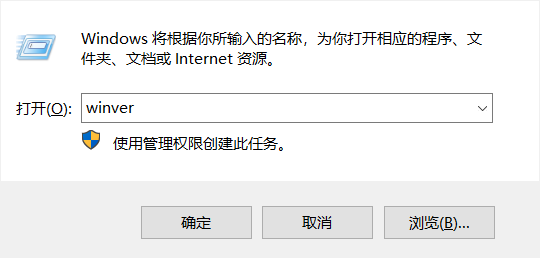
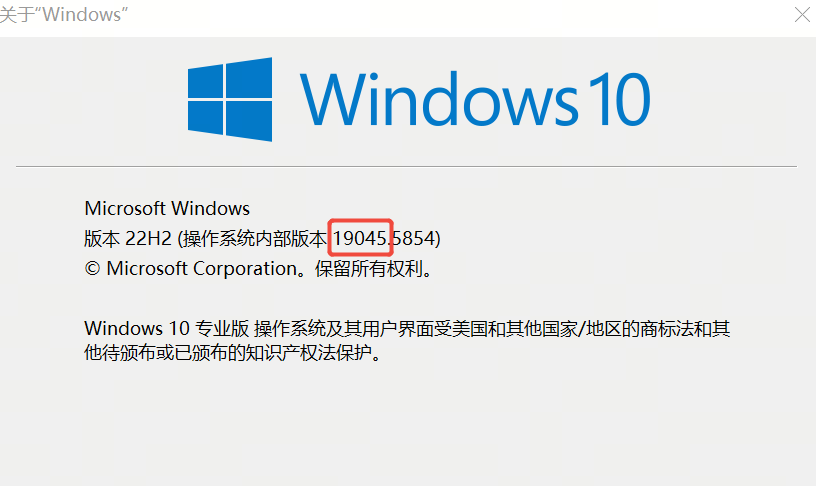
- Check the internal version, press Win + r and input "winver", requires greater than 19041; otherwise, you need to update the Windows system
- Open Task Manager and confirm that CPU virtualization is enabled.
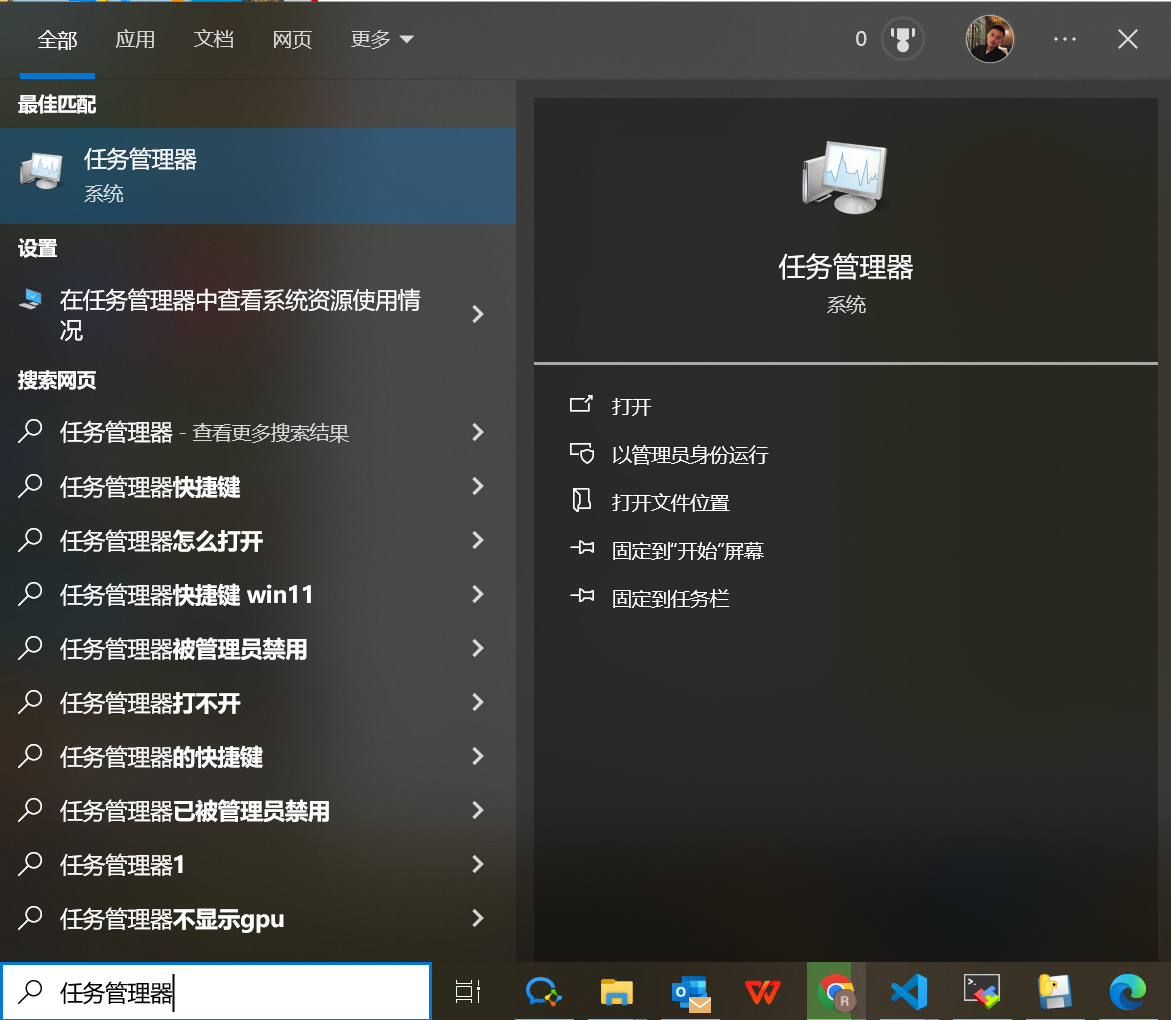
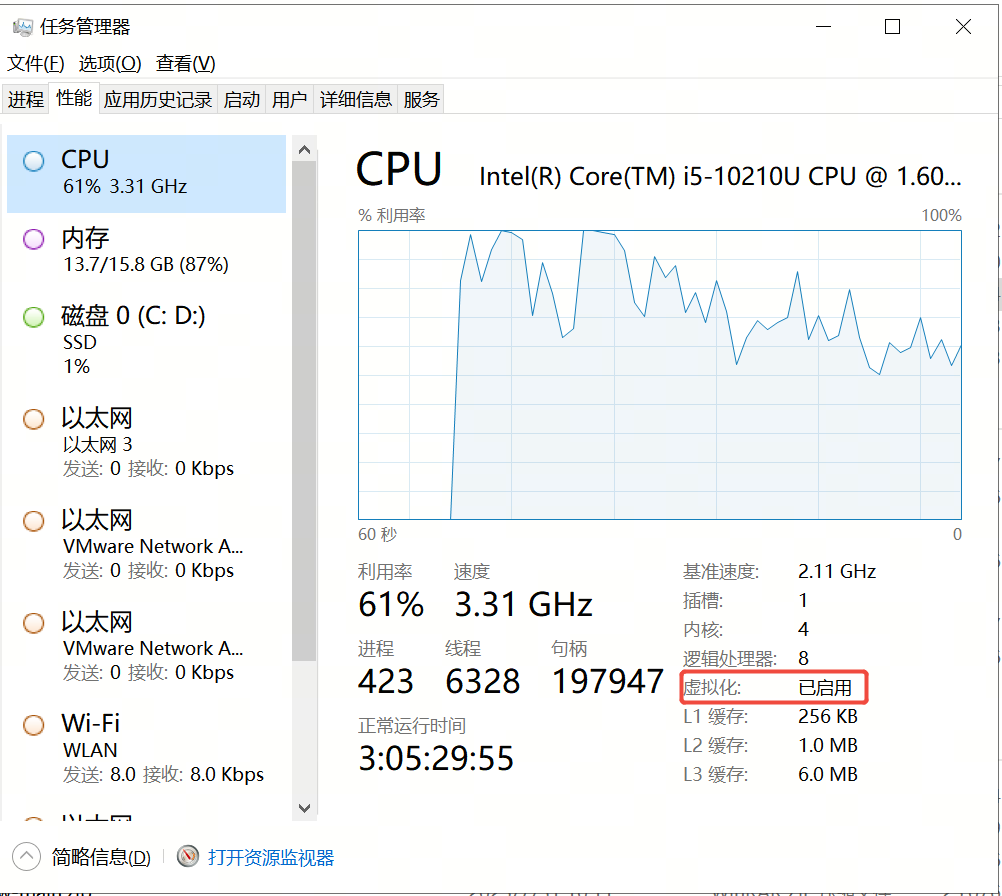
If not enabled, you need to enable it and restart your computer
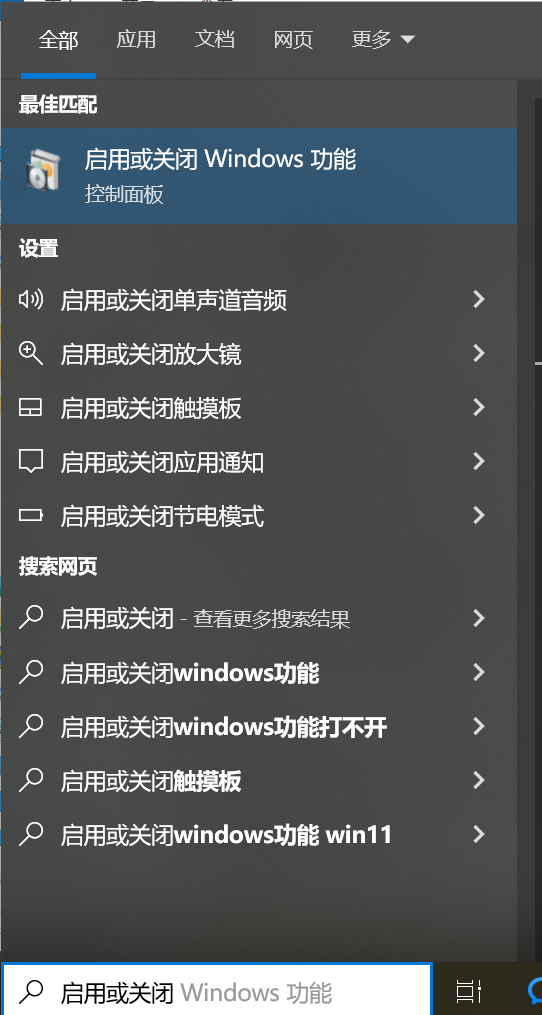
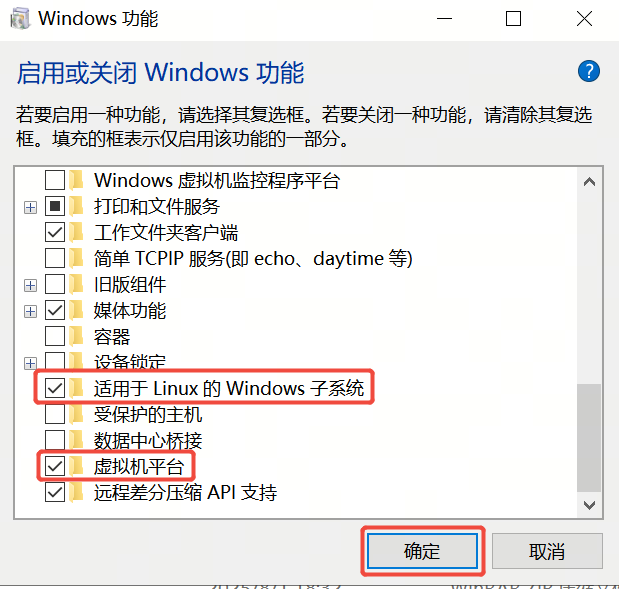
Download WSL2 Kernel Update Package
WSL 2 Linux kernel update package address: https://aka.ms/wsl2kernel After downloading, run the file directly
Install Linux System
-
Open PowerShell as Administrator, then view the list of available Linux distributions from the online store
PS C:\Users\name> wsl --list --online The following is a list of valid distributions that can be installed. Use "wsl --install -d <distribution>" to install. NAME FRIENDLY NAME Ubuntu Ubuntu Debian Debian GNU/Linux kali-linux Kali Linux Rolling Ubuntu-18.04 Ubuntu 18.04 LTS Ubuntu-20.04 Ubuntu 20.04 LTS Ubuntu-22.04 Ubuntu 22.04 LTS Ubuntu-24.04 Ubuntu 24.04 LTS OracleLinux_7_9 Oracle Linux 7.9 OracleLinux_8_10 Oracle Linux 8.10 OracleLinux_9_5 Oracle Linux 9.5 openSUSE-Leap-15.6 openSUSE Leap 15.6 SUSE-Linux-Enterprise-15-SP6 SUSE Linux Enterprise 15 SP6 openSUSE-Tumbleweed openSUSE Tumbleweed -
View installed systems (none by default)
-
Install the specified system
-
After installation, you need to input a username and password
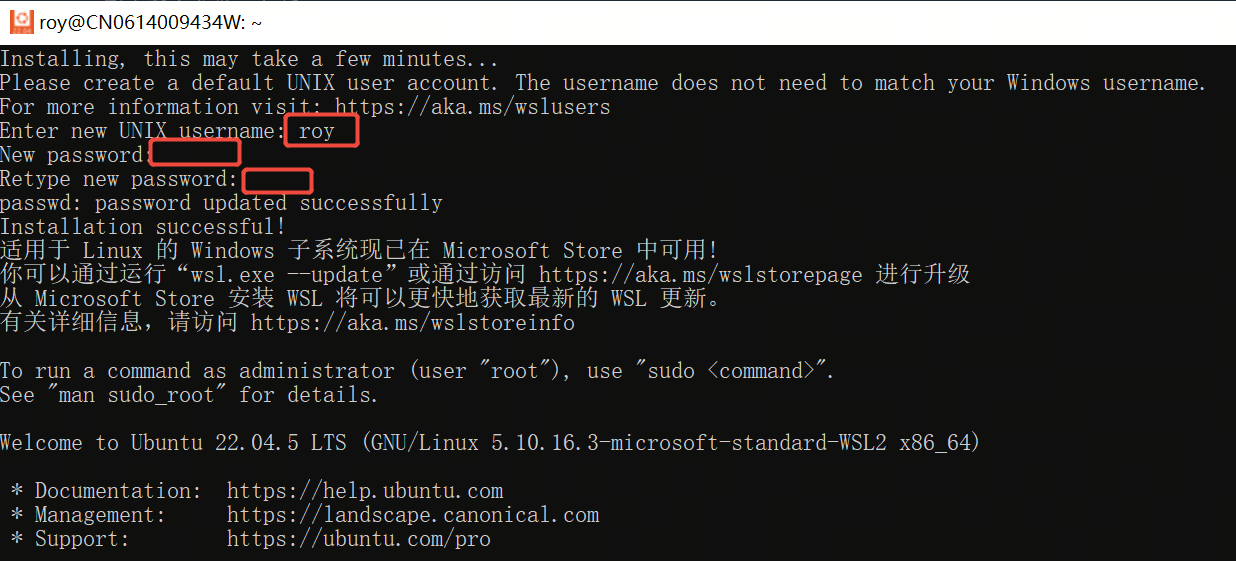
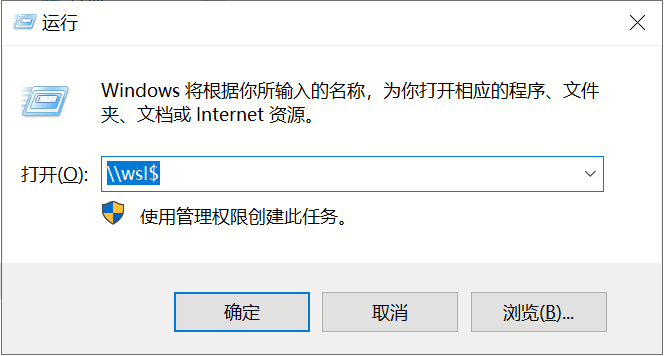
- View the mapped local path Press Win + r and input \wsl$ Click on the Ubuntu folder, right-click, and click "Map network drive" to add it to My Computer. Note that you can only open this disk after starting Ubuntu.
Using WSL in VS Code
- Install the WSL extension
- Open WSL in the terminal
- Install Python and lazyllm
Using Local Command Line
Search for WSL directly, open it, and you can enter the subsystem