Voice Assistant
This example demonstrates how to use LazyLLM to quickly build an intelligent voice assistant with both speech input and speech output capabilities.
In this section, you will learn how to build a voice-interactive assistant, including the following key points
- How to use Pipeline to achieve sequential orchestration and data streaming between multiple modules.
- How to use TrainableModule to call local voice models for speech-to-text and text-to-speech conversion.
- How to use OnlineChatModule to call an online large language model (LLM) for natural language generation.
- How to use WebModule to deploy the voice assistant with one click, enabling a “voice Q&A” interactive experience.
- How to set the parameter
audio=Truefor real-time voice input.
Design Concept
First, to build an intelligent assistant with both speech input and output capabilities, we need a core reasoning model that can understand natural language. Here, we use LazyLLM’s OnlineChatModule as the central engine for language understanding and response generation.
Next, since the voice assistant not only needs to “think,” but also to “listen” and “speak,” we introduce two local speech models:
sensevoicesmall: responsible for converting speech to text (Speech-to-Text);ChatTTS-new: responsible for converting the generated text back to speech (Text-to-Speech).
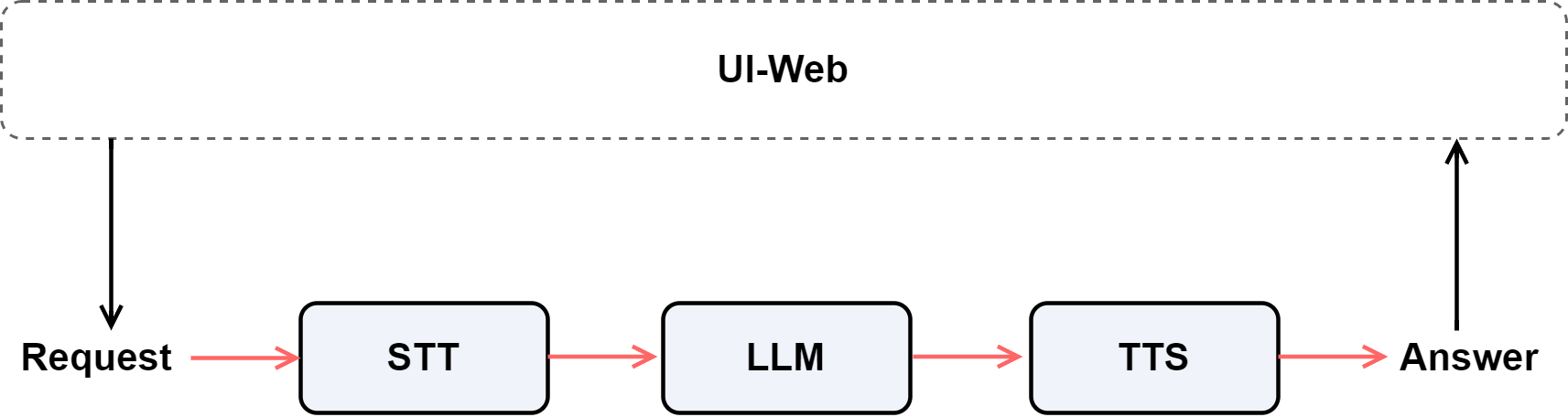
Then, we use a Pipeline to sequentially connect these three modules (speech recognition → language model → speech synthesis), allowing data to flow automatically between them and form a complete speech interaction chain.
Finally, we deploy a web interface through WebModule, enabling the audio=True option so users can record questions and listen to responses directly on the webpage—achieving a true “speech-to-speech” intelligent interaction experience.
So, the overall design is as follows:
Setup
Install Dependencies
Before starting, please run the following command to install the required dependencies:
Import Packages
❗ Note: In LazyLLM, both
Pipeline(uppercase) andpipeline(lowercase) refer to the same class object. The system automatically recognizes and supports both forms.
Environment Variables
Since this example uses an online large language model, you need to set your API keys (taking SenseNova as an example):
How to apply for a SenseNova API Key:
- Visit the SenseNova Platform
- Register and log in to your account
- On the main page → Click your profile icon → Create a new “AccessKey”
- Copy the generated API keys and set them as environment variables
❗ For other platforms's API key setup, please refer to the official documentation.
Model Description
If you plan to use speech recognition (ASR) and speech synthesis (TTS), ensure that the corresponding models are properly configured in your local or cloud environment. This example uses two local models:
sensevoicesmall: Handles speech-to-text (ASR)ChatTTS-new: Handles text-to-speech (TTS)
💡 You can change the model names or specify custom model paths as needed.
Code Implementation
The following is the complete runnable example:
# Build the voice assistant pipeline
with pipeline() as ppl:
    # Speech to text
    ppl.chat2text = TrainableModule('sensevoicesmall')
    # LLM conversation
    ppl.llm = OnlineChatModule()
    # Text to speech
    ppl.text2chat = TrainableModule('ChatTTS-new')

# Launch the web service (with voice I/O support)
WebModule(ppl, port=10236, title='Voice Assistant', audio=True).start().wait()
Parameter Description
port: The web access port (accessible viahttp://127.0.0.1:10236).title: The title displayed at the top of the web interface.audio: Enables voice input; the web UI automatically shows a microphone button for interactive speech Q&A.
Once .start().wait() is executed, the service will remain running, and the terminal will display the local access address (e.g., http://127.0.0.1:10236).
Open this address in your browser to interact with the assistant using voice input and voice output.
Demonstration
Example interface:
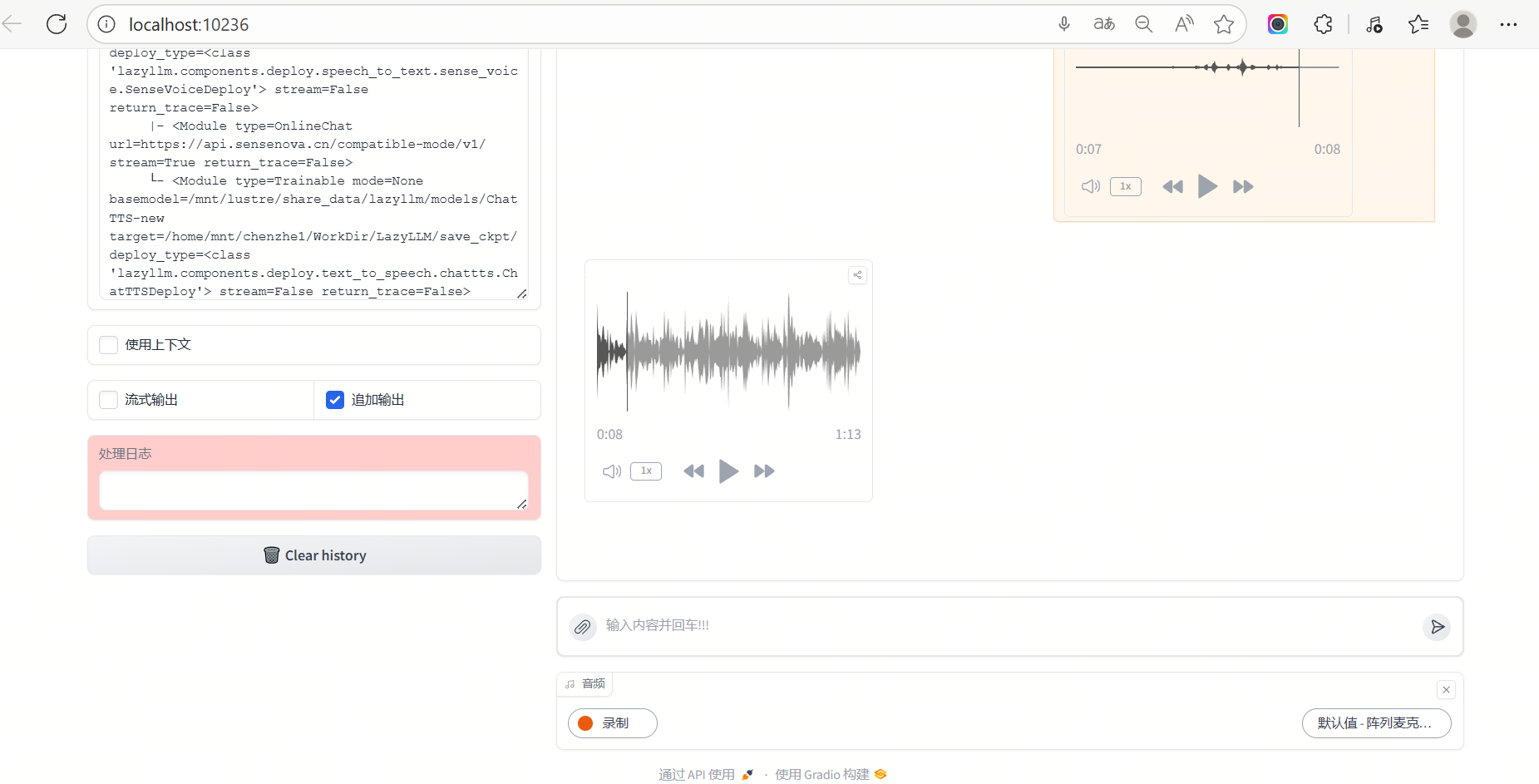
- Click the microphone icon to record your voice.
- The program automatically performs: voice recognition → LLM response generation → voice playback.
- The entire process runs interactively in your browser with no extra setup required.